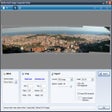
My Screen Recorder Pro

Publisher's Description

More Products to Consider

  • VLC Media Player
    Play audio and video files in real-time and streaming modes.
    Download Or, Learn More About VLC Media Player

    Installed

    Smart Install
  • GOM Media Player
    Play video files of multiple video formats.
    Download Or, Learn More About GOM Media Player

    Installed

    Smart Install
  • KMPlayer
    Play digital media of various formats with 3D and WiDi support.
    Download Or, Learn More About KMPlayer

    Installed

    Smart Install
  • UMPlayer
    Play virtually any media file in open-source cross-platform mul...
    Download Or, Learn More About UMPlayer

    Installed

    Smart Install
  • Free CUDA Video Con...
    Convert, edit video and audio files for multimedia devices.
    Download Or, Learn More About Free CUDA Video Converter

    Installed

    Smart Install
  • VideoSpirit Pro
    Convert and edit your video files adding slide shows and titles...
    Download Or, Learn More About VideoSpirit Pro

    Installed

    Smart Install
  • Full Player
    Play all the most popular video and audio formats.
    Download Or, Learn More About Full Player

    Installed

    Smart Install
  • Media Player Codec ...
    Play various types of video, audio, movie, music files in Media...
    Download Or, Learn More About Media Player Codec Pack

    Installed

    Smart Install
  • Any Video Converter
    Convert video and YouTube to AVI, WMV, MP4, FLV, MP3, burn vide...
    Download Or, Learn More About Any Video Converter

    Installed

    Smart Install
  • FormatFactory
    Convert your videos, audios, and pictures to preferable file fo...
    Download Or, Learn More About FormatFactory

    Installed

    Smart Install
  • RealPlayer
    Discover and play online videos, download, save, organize, and ...
    Download Or, Learn More About RealPlayer

    Installed

    Smart Install
  • Total Video Convert...
    Convert any formats video to iPad, iPhone, AVCHD, Blu-Ray, DVD.
    Download Or, Learn More About Total Video Converter

    Installed

    Smart Install
  • Windows 7 Codec Pac...
    Play 99.9 percent of files with a collection of codecs for Wind...
    Download Or, Learn More About Windows 7 Codec Pack

    Installed

    Smart Install
  • DivX Plus Software
    Play, create, and stream high-quality video.
    Download Or, Learn More About DivX Plus Software

    Installed

    Smart Install
  • ZC Video Converter
    Convert your videos to iPod, iPhone, 3GP, PSP, MP4, H264, AVI, ...
    Download Or, Learn More About ZC Video Converter

    Installed

    Smart Install
  • Windows Essentials ...
    Add audio/video codecs and filters to playback any video file.
    Download Or, Learn More About Windows Essentials Media Codec Pack

    Installed

    Smart Install
  • VideoPad Video Edit...
    Edit movies and other video recordings on a Windows PC.
    Download Or, Learn More About VideoPad Video Editor Pro

    Installed

    Smart Install
  • Screencast-O-Matic
    Record video on your screen or with a webcam.
    Download Or, Learn More About Screencast-O-Matic

    Installed

    Smart Install
  • CyberLink PowerDire...
    Unleash your creativity to transform your video footage into am...
    Download Or, Learn More About CyberLink PowerDirector

    Installed

    Smart Install
  • Windows Live Movie ...
    Create movies and slide shows from your photos and videos, and ...
    Download Or, Learn More About Windows Live Movie Maker

    Installed

    Smart Install
  • DVD Creator Pro
    Burn any video to DVD disc, DVD folder or ISO files.
    Download Or, Learn More About DVD Creator Pro

    Installed

    Smart Install
  • Windows Movie Maker...
    Construct home movies from captured digital video on your Windo...

    This download is served from an external site

    close

    NOTICE: This link will open a connection to a third-party site. CNET cannot ensure the security of software that is hosted on external sites.

    Continue to download

    Sponsored Products

    Visit Site Or, Learn More About Windows Movie Maker (Windows XP)
  • Corel VideoStudio P...
    Shoot, edit, and share all of life's adventures with the all-in...
    Download Or, Learn More About Corel VideoStudio Pro

    Installed

    Smart Install
  • AoA DVD Ripper
    Back up your DVD movies to AVI, DivX, iPod, iPhone, iPad, Kindl...
    Download Or, Learn More About AoA DVD Ripper

    Installed

    Smart Install
All User Reviews
  • All versions:

    3.1 stars

    out of 25 votes

    • 5 star: 8
    • 4 star: 3
    • 3 star: 5
    • 2 star: 1
    • 1 star: 8
  • Current version:

    3.0 stars

    out of 1 votes

    • 5 star: 0
    • 4 star: 0
    • 3 star: 1
    • 2 star: 0
    • 1 star: 0
  • My rating:

    0 stars

    Write review

Results 1-1 of 1

  • 3.0 stars

    "Multiplexing after recording"

    March 20, 2009  |   By felinis2

    Version: My Screen Recorder Pro 2.67

    Pros

    Records anything off the video screen as advertized. Audio capture is also possible.

    Cons

    When recording .AVI videos, records audio and video into seperate files that are re-multiplexed together after the recording session is completed. This is a lengthy process. Colors on recorded video are patchy, due to insuffecient color resolution.

    Summary

    My experience with MVRP is with capturing home video. This is not its advertized use, but since it will record in excess of 24 frames per second, I thought that I would give it a try. Audio capture is intended to come from a microphone, but this too can be finessed as I will explain. Your PC should be fast enough for video processing, preferably with multiple processing cores.

    Configuring MVRP is a complicated process, as is figuring out the nature of all of its features. If you do not display its window in full-screen, it hides several of its important menu-bar icons. As I said above, the software records its audio and video seperately for re-combination (muxing) afterwards. I confused this process with MVRP's "Auto Tasks" function, expecting it to mux the audio of segment one while it recorded segment two. I was wrong, and I still don't know what Auto Tasking does.

    In order to generate usable home video, one must adjust the area of the screen that is to be recorded (recording box). If your target medium is DVD, then this area should be set to 720 X 480, wider for full-screen video. Be consistant with these dimensions. Many video products will not process video segments with different frame sizes.

    When you press the red "Record" button, you are presented with an annoying recording configuration dialog box. After you close this dialog, MVRP will also prompt you to locate the recording box manually, unless you have previously specified a fixed origion point for it. Different video sources place the video at different locations, so getting this right is a pain. MVRP will allow you to schedule your recordings, so it is important to properly pre-posotion the recording box or your scheduled recording will stall, waiting for you to place the recording box.

    Select .AVI recording, best quality, at least 24 frames per second, 30 if you are recording streaming video. Select the largest video segment size of 1.9 GB (the default). Select the best quality audio.

    Here is how I capture audio. My video laptop runs Vista Home Premium. I opened the control panel and created a desktop shortcut for the Sound configuration feature. Open the Sound configuration and select Playback. Select Speakers and set this to the default. Under properties, set the level to 50%, Virtual Surround and DVD quality. This is only for recording. For DVD playback, restore Playback to its original setting.

    Under Recording select "Waveout Mix" and make it the default. Set the recording level to 50% and select DVD quality. Close the Sound configuration.

    I have two physical wiring setups - one for recording and another for playback.
    For recording I connect my sound system to the headphone jack on the front of the laptop. For playback I reconnect my speakers to the S/PDIF optical output jack on the front panel.

    Start MVRP and select Tools/Audio Tuning Wizard. Test the sound and adjust the volume to a reasonable level. Select "Next" and under "Recording Devices" select "WaveOut mix" and select "Record from Microphone". Select "Next" and "Finish". Record a short test .AVI to verify that you are recording sound.

    When your recording finishes, you get to supply the project's filename. Then the audio/video re-muxing process begins. Afterwards your video will be divided into 1.9 GB segments, each 80 minutes in length. These must be appended into a single video file. MVRP contains a "Join Files" feature to accomplish this.

    Reply to this review

    Was this review helpful? (2) (1)

Results 1-1 of 1

Add Your Review

or Log in or create an account to post a review.
You are logged in as . Please submit your review for My Screen Recorder Pro 2.67
Add Your Review

The posting of advertisements, profanity, or personal attacks is prohibited.
Click here to review our site terms of use.

Submit your reply

Submit

The posting of advertisements, profanity, or personal attacks is prohibited.
Click here to review our site terms of use.

cancel

E-mail this review

Submit cancel

Report offensive content

If you believe this comment is offensive or violates the CNET's Site Terms of Use, you can report it below (this will not automatically remove the comment). Once reported, our staff will be notified and the comment will be reviewed.

Select type of offense:

Offensive: Sexually explicit or offensive language
Spam: Advertisements or commercial links
Disruptive posting: Flaming or offending other users
Illegal activities: Promote cracked software, or other illegal content
Submit cancel

Previous Versions:

Error

close

ERROR MESSAGE

If you think this is an error, please contact CNET TechTracker Support for further assistance.

Ok

Running Request

close

loading

Smart Install Software

close

CNET TechTracker will now automatically install software without requiring further action by you. (Note: This feature automatically accepts associated EULAs and third party applications on your behalf.)

You have selected the following software to Smart Install:

CNET TechTracker will attempt to install this software without interrupting you again. If an application requires manual installation, CNET TechTracker will download the installer and prompt you to take further action.

Proceed with Smart Install?

Confirm Standard Install Cancel

Submit a problem report for My Screen Recorder Pro

close

Please describe the problem you have with this software. This information will be sent to our editors for review.

Problem:

The CNET Installer isn't working as expected

The download link does not work

The software has a newer version

The software contains malware

Other

Description:

Please select a feedback type.

Please enter a description.

Submit Problem Report

Problem Report submitted

close

Thank you for submitting a problem report! The Download team is committed to providing you with accurate software information.

OK

Or, Learn More About My Screen Recorder Pro

Installed

Smart Install
My Screen Recorder Pro