Used Easter Egg Designer for Windows?


Editors’ Review

Download.com staff
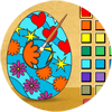
This application allows you to design custom Easter eggs. Apply pre-defined patterns and shapes, then use a detailed paint tool with a 35-color palette to finalize your creation.
Enlarged image for Easter Egg Designer
Easter Egg Designer 0/1
  • Pros

    • Apply pre-defined patterns to the entire egg surface
    • Layer multiple decorative shapes onto the design
    • Resize shapes using the mouse wheel or numpad keys
    • Rotate applied shapes with keyboard arrow keys
    • Enlarges specific areas for precise color application
  • Cons

    • Lacks an option to save or export the final design
    • Users cannot import or create custom patterns
    • No ability to add or edit custom shapes
    • Does not support freehand drawing or brush tools
    • No functionality for adding text to the design

Used Easter Egg Designer for Windows?


Explore More


Full Specifications

GENERAL
Release
Latest update
Version
1.2.3
OPERATING SYSTEMS
Platform
Windows
Operating System
  • Windows 10
  • Windows XP
  • Windows Vista
  • Windows 8
  • Windows 2000
  • Windows 98
  • Windows NT
  • Windows ME
  • Windows 7
Additional Requirements
Adobe AIR runtime 2.5
POPULARITY
Total Downloads
130
Downloads Last Week
0

Report Software

Program available in other languages


Last Updated


Developer’s Description

Freely paint and design your unique Easter egg.
Showcase your creativity and unleash your aesthetic sense by designing your own Easter egg with a beautiful assortment of patterns, shapes and colors! The game opens with a plain Easter egg on the left of the screen, while the available patterns are located at the top right corner, and different types of shapes are placed below the patterns. To apply a pattern, simply click the left or right arrow button next to the pattern samples. The selected sample will be enlarged and shown in the middle of the five boxes, while the pattern itself will be automatically applied to the Easter egg. You may repeat these steps to modify the pattern. To select a type of shape, click the left and right arrow buttons next to the shape samples. The available shapes of the chosen type will be displayed under the sample boxes, for example, when you have selected the snowflake, three available shapes of snowflake will appear under the sample boxes. Click to select any shape you like, then drag and paste it onto the Easter egg. You may click the shape again to adjust its size by using the scroll wheel on your mouse or the + and - keys on your numpad: scroll up or press the + key to enlarge the shape, and scroll down or press the - key to reduce the size. You may also rotate the shape by pressing the left and right arrow keys on your keyboard. If you no longer wish to apply a shape, you can click to select it, then drag and drop it to the bin on the right of the Easter egg. When you have completed the design, click the "Add some color" button at the bottom right corner to proceed to coloring. You will then be given a palette of 35 colors on the right of the Easter egg. To apply a color, simply use the paint brush to select a color, then move to the desired position on the Easter egg. The area will be circled and enlarged so that you can apply the color easily. Click to paint the color, or choose another color if you wish. You may reapply colors to a certain area, or you can click the topmost

Download.com
Your review for Easter Egg Designer