Used SelectDefaultPrinter for Windows?


SelectDefaultPrinter Analysis

AI Assisted Content ·

Not written by CNET Staff.

SelectDefaultPrinter is a free utility designed for Windows users to simplify the management of default printers. This application allows users to easily switch between multiple printers based on their current needs, enhancing productivity and convenience. With its straightforward interface, SelectDefaultPrinter enables quick selection of the desired printer without navigating through complex system settings.

Top Recommended Alternative

The software includes features such as automatic detection of available printers and the ability to set specific printers as default based on user-defined criteria. This is particularly useful in environments where users frequently change printers, such as offices or shared workspaces. SelectDefaultPrinter is compatible with various Windows versions, making it a versatile tool for anyone looking to streamline their printing processes.

Enlarged image for SelectDefaultPrinter
SelectDefaultPrinter 0/1

Used SelectDefaultPrinter for Windows?


Explore More


Full Specifications

GENERAL
Release
Latest update
Version
1.0
OPERATING SYSTEMS
Platform
Windows
Operating System
  • Windows 8
  • Windows XP
  • Windows 2003
  • Windows Server
  • Windows 7
  • Windows 10
  • Windows Vista
Additional Requirements
.NET Framework version 3.5 or later
POPULARITY
Total Downloads
20
Downloads Last Week
0

Report Software

Last Updated


Developer’s Description

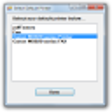
Select the Windows default printer from a dialog box.

SetDefaultPrinter is a tiny utility to set the Windows default printer. But instead of having users go find the printer list on the control panel, it presents them with a simple dialog box with a list of printers and a Select button.I wrote this utility as part of a desktop computer deployment I was doing at the time. I was a one-man IT department, so any reduction in baby-sitting of users was a good thing. And let's face it, some users need a lot more babysitting than others. We had about 50 people and 10 printers, and I discovered a problem early in the project: when a roaming user logged in to a computer for the first time, the default printer was not always consistent. And in some cases, none of the printers was set as default, which caused many programs to have fits and toss up errors.After the rollout, and any time they used a different computer, users would blindly print their documents, sometimes privacy-sensitive ones, and then realize they didn't know what printer it went to. Some of the users were barely computer literate, so I had to find an easy and consistent way to enable them to select the default printer for themselves.

You can use SetDefaultPrinter any way you choose. I created it to be run from the default Windows user login script so each time a user logged in to a computer for the first time, the dialog box would pop up and force them to make a selection. It's small enough that it can be stored in the .\Netlogon folder and run directly from there. I also created shortcuts for the Desktop, and "pinned" on the Start Menu, so users could run it whenever they needed.SetDefaultPrinter has no installer, only a ZIP file. It consists of a single EXE file and only requires Microsoft .Net Framework. It was developed on a Windows 7 system with .Net 3.5, and I'm sure it will be forwards-compatible to newer versions for quite some time, but I'm not sure how backwards-compatible it is to older versions.I've used SetDefaultPrinter successfully on Windows XP, 7, 8, Server 2003, and Server 2008, but you should test it in your environment to make sure there are no unintended consequences.Probable future enhancements: - command line switches to choose the printer - timeout with default selection - invisible operation - option to run as Windows Tray applet.


Download.com
Your review for SelectDefaultPrinter
Download.com

AI Assisted Content Disclosure

Content created and reviewed by Softonic with information obtained from Matthew Shea, using AI.

CNET's editorial team was not involved in the creation of this content. Opinions, analysis and reviews were not provided by CNET.