Used Quadcopter FX Simulator for Android?


Quadcopter FX Simulator Analysis

AI Assisted Content ·

Not written by CNET Staff.

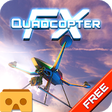
Quadcopter FX Simulator is a free Android application designed for enthusiasts of remote-controlled drones. This first-person view (FPV) simulator allows users to engage with a quadcopter in a virtual environment, mirroring the physics and controls of real-life drone flying. The app offers a comprehensive control scheme, including pitch, roll, and directional navigation, providing an immersive experience for both beginners and seasoned pilots.

Users can choose to fly freely or perform aerial stunts, enhancing the simulation experience. The app features a camera view that simulates the perspective of the drone, allowing for a more engaging flight experience. Overall, Quadcopter FX Simulator serves as an educational tool for mastering drone operation techniques without the risks associated with physical flying.

Enlarged image for Quadcopter FX Simulator
Quadcopter FX Simulator 0/3

Used Quadcopter FX Simulator for Android?


Explore More

Full Specifications

GENERAL
Release
Latest update
Version
1.75
OPERATING SYSTEMS
Platform
Android
Additional Requirements
None
POPULARITY
Total Downloads
618
Downloads Last Week
4

Report Software

Program available in other languages


Last Updated


Developer’s Description

A Quadcopter / Multirotor RC Drone simulator with First Person View (FPV), HUD, Return Home, Course Lock, Home Lock, Camera Gimbal, Acro mode...

A Quadcopter / Multirotor RC Drone simulator with First Person View (FPV), HUD, Return Home, Course Lock, Home Lock, Camera Gimbal, Acro mode, Acro 3D mode and more..

Now Google Cardboard VR is also supported for immersive flying and FPV experience.

Support for Controllers

Please note that this a simulator and Not a game. It is designed for RC enthusiasts to practice Flying skills.

Basic Tutorial for beginner is in the above description video.

Minimum Screen resolution required is 800 x 480 px. Minimum Recommended RAM is 1 GB. We are open to suggestions and problems. You can always email us at our support email.

Features:

1)Based on real physics Model of Quadcopter

2)Interactive selection of different cameras modes:

* Eye level Camera

* First Person View Camera

* Stabilized Gimbal Camera

* Follow Camera

You can walk around while flying, looking at the quad either by dragging the middle of screen or by enabling accelerometer button on the left side in the Eye level Camera Mode..

3)Return to Location (RTL)

When on the Quad will automatically Return and Land back in its Landing Position. It will Automatically switch on when the Quad goes out of range.

4)Position Hold

When ON the Quad will try to Hold its position when both control sticks are released.

5)Course Lock

When ON the Forward, Backward, Left and Right will remain same regardless of orientation of Quad. e.g. Moving Right stick Forward will always make the Quad go forward in East Direction even if its pointing towards north.

6)Home Lock

When ON the Forward will always be Away from you and Backwards will always be towards you regardless of Quads Orientation.

7)Heads up Display(HUD)

Displaying real-time Pitch, Roll, Heading, Altitude and Speed.

8)Adjustable Control sensitivity Settings

9)Auto Stabilizing adjustable

10)Altitude Hold Switch

If ON the quad will try to maintain the altitude when it was switched on.

11)Advanced Settings

If enabled users can change the Total Weight, Static / Dynamic thrust, PID setting and Aerodynamic Drag values.

12)Multiple Quad / Scene Selection / Some basic Challenges for Time Pass..

13)Multiple mode Input Support.

Now it supports mode1, mode2. mode3, mode4 and accelerometers. You can change via settings page

14)Camera rotation in FPV and Gimbal camera.

Click and Drag from center of screen on FPV or Gimbal camera. Double click in center to reset.

15)Dynamic Wind

Wind effect will reduce when behind the building.

16)Google cardboard Support for immersive virtual reality and FPV experience.

Make sure that you have a controller attached to the device because the only way you can control the quadcopter is by controller once the Cardboard VR is enabled. After enabling you have to gaze at the buttons on the UI and press the trigger button on the cardboard to click it. Once you are flying then pressing the trigger anywhere will open the settings page. You can also touch on screen anywhere to execute trigger event instead of pressing the trigger button.

17)Max Tilt Angle / Auto Stabilize Sensitivity Slider

In Normal Mode the slider changes the Maximum Tilt angle setting. This settings determines the maximum roll / pitch angle the quadcopter will tilt. In Sports Mode it changes the Auto Stabilize sensitivity. The higher the settings the more force is applied to stabilize the quadcopter.

18)Acro / Acro 3d mode for expert flying

Auto stabilize will not be applied in these modes. You need to be expert to fly in this mode.In 3D Mode is mode in which the Quadcopter can fly upside down also. The throttle sticks will produce reverse thrust when moved down from the center position.

Enjoy Flying..

Credits: Some Arteria content is in use.


Download.com
Your review for Quadcopter FX Simulator
Download.com

AI Assisted Content Disclosure

Content created and reviewed by Softonic with information obtained from 3D CREATIVE WORLD, using AI.

CNET's editorial team was not involved in the creation of this content. Opinions, analysis and reviews were not provided by CNET.