Used CtrlDock: Smart Control Panel for Android?
Editors’ Review
CtrlDock: Smart Control Panel by Austin Devs. replaces the system quick settings on Android with a gesture-activated control surface that centralizes toggles and notifications. The app exposes a configurable panel accessed by swipe gestures and includes a theme engine plus floating controls for navigation and volume. It aims at Android users who prefer consolidated, gesture-based access to system functions and visual customization beyond the platform's stock controls.
What does CtrlDock change about quick settings?
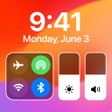
CtrlDock converts dispersed system controls into a single, swipe-activated surface. The app provides a centralized Control Center for quick access to Wi-Fi, Bluetooth and media controls, and it groups shortcuts and app actions in one panel so users do not need to open multiple system screens to toggle common functions.
How deep is the customization of the control panel?
Customization extends to layout, icons and themes with concrete limits and options. Users can arrange up to 12 quick actions and app shortcuts, choose transparency and icon styles, and apply visual presets through the Theme System. The Theme System supports browsing, previewing and applying styles so users can test appearances before committing changes.
Does CtrlDock affect device responsiveness or background usage?
The app runs persistent UI elements but community notes emphasize smooth responsiveness. Despite offering live notifications and interactive panels, reported feedback describes generally smooth performance. The control surface operates as a persistent personalization process in the background, so its runtime presence is an expected part of using always-available panels and floating controls.
Is CtrlDock straightforward to set up and use?
Initial setup requires explicit system permissions and basic configuration steps. The app requests Accessibility Service permission to enable floating panels and to perform system-level actions like opening the notification shade or simulating navigation button presses. Configuration centers on assigning gestures, selecting themes, and placing quick actions, tasks that suit users comfortable granting accessibility access.
Pros
- Centralized Control Center for toggles and media
- Theme System with preview and multiple visual categories
- Floating Assistive Touch and on-screen volume controls
- Arrange up to 12 quick actions and app shortcuts
Cons
- Requires Accessibility Service permission for floating panels and actions
- Specific Android version requirements vary by device
- Large quick-action layouts can feel cluttered for some users
Bottom Line
A practical, responsive choice for personalization-minded Android users
Community reports of smooth performance make CtrlDock a practical choice for users seeking a single, gesture-driven control surface on Android. Bear in mind the app relies on Accessibility Service permissions to enable its floating panels. Consider configuring the app to launch at device startup to keep the panel consistently available across reboots, since behavior can vary by device model.
Used CtrlDock: Smart Control Panel for Android?