Used AIO Launcher for Android?


AIO Launcher Analysis

AI Assisted Content ·

Not written by CNET Staff.

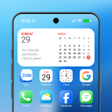
AIO Launcher is a free, innovative home screen replacement designed for Android devices. Unlike traditional launchers, it prioritizes functionality by displaying essential information directly on the home screen, allowing users to maximize their device's utility. This launcher does not track personal data, ensuring user privacy while providing a streamlined interface. Key features include customizable widgets and a straightforward layout that enhances user accessibility to apps and notifications without cluttering the screen.

The launcher is particularly suitable for those who prefer a minimalistic approach to their home screen. Users can easily set AIO Launcher as their default home screen through simple settings adjustments. Additionally, it allows for tailored notification management, ensuring that users receive only the alerts they deem necessary. Overall, AIO Launcher stands out by offering a unique combination of functionality and privacy, making it an interesting option for Android users looking for an alternative to conventional home screens.

Enlarged image for AIO Launcher
AIO Launcher 0/4

Used AIO Launcher for Android?


Explore More


Full Specifications

GENERAL
Release
Latest update
Version
7.0.2
OPERATING SYSTEMS
Platform
Android
Operating System
Android 15.0
POPULARITY
Total Downloads
15
Downloads Last Week
7

Report Software

Program available in other languages


Last Updated


Developer’s Description

AIO Launcher is not ordinary home screen.

AIO Launcher is not ordinary home screen. It does not have colorful icons, many animation effects and a variety of themes. Instead, AIO Launcher uses a screen space to show you the most important information.

AIO Launcher can display the following information on the screen:

* Weather - current weather and forecast for 10 days;

* Notifications - standard android notifications;

* Player - when you turn on the music, playback control buttons appear;

* Frequent apps - frequently used applications buttons;

* Your apps - the icons of the selected applications;

* Contacts - quick contacts;

* Dialer - numpad for quick calls;

* Timer - timer start buttons;

* Mail - list of received emails;

* Notes - list of your notes;

* Telegram - last messages (paid);

* RSS - latest news;

* Twitter - all tweets or a single user tweets;

* Calendar - upcoming events in the calendar;

* Exchange rates - currency exchange rates;

* Bitcoin - the bitcoin price;

* Finance - stocks, precious metals, cryptocurrencies etc (paid);

* Calculator - simple calculator;

* Audio Recorder - record, play and share audio;

* System monitor - RAM and NAND usage, percentage of battery power;

* Control panel - toggles for WiFi/BT/GPS etc;

* Traffic - shows current download/upload rates and connection type;

* Android widget - standard app widgets (paid).

Other features:

* Several different themes;

* Icon packs support;

* Multiple icon shapes;

* Ability to change the font size;

* Advanced search system for applications, contacts, files and information on the Internet;

* Ability to rename applications;

* Widgets and plugins support;

* Tasker integration;

* Gestures;

* Very customizable.

Usage:

* Swipe on search button opens quick menu with phone, camera and market;

* To add the Android widget, long press search button and select the "+" icon;

* To resize the widget, hold the finger on the widget, then use the up and down buttons;

* To access the list of all applications, drag from the left edge of the screen;

* Hold finger on various elements of the screen to open menu;

* To open settings, hold your finger on the search button, and then click the gear icon;

* Hold the title of the widget to move it around;

* Any widget can be disabled in settings;

* You can minimize the widget by clicking on its name;

* To remove an application, open the application menu, hold your finger on the desired application, and drag it to the recycle bin icon.

How to connect to Outlook:

https://support.microsoft.com/en-hk/help/12409/microsoft-account-app-passwords-two-step-verification

How to set as default launcher on a Huawei smartphone:

Settings - Applications - Settings - Default applications - Settings - Manager - AIO Launcher

If notification widget don't work on MIUI:

Settings - Battery & performance - Manage apps' battery usage - Choose apps - AIO Launcher - No restrictions

If app widgets don't work on MIUI:

Go to the application settings on your phone, find the application that owns the widget, click "Other permissions" and enable "Display pop-ups when running in the background" option.

This app uses the Device Administrator permission.


Download.com
Your review for AIO Launcher
Download.com

AI Assisted Content Disclosure

Content created and reviewed by Softonic with information obtained from AIO Mobile Apps, using AI.

CNET's editorial team was not involved in the creation of this content. Opinions, analysis and reviews were not provided by CNET.